
Fees & tools
Kraken Pro post-only order canceled: what to check before retrying
A canceled post-only order needs a reason check before another attempt. Compare the opposite quote, order expiry, and market status without accidentally allowing taker execution.
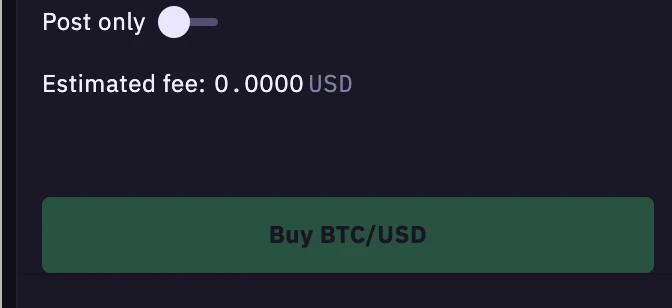
If your Kraken Pro post-only order was canceled immediately, first check whether its limit price would have matched an existing order. Post-only prevents that immediate match; it does not promise that an order will be accepted or filled. Before retrying, read the cancellation reason and check for any open order or recorded execution.
This guide covers ordinary spot limit orders on Kraken Pro. It does not cover derivatives or recommend a trading price.
What the post-only setting actually protects
Kraken describes post-only as an instruction to place a limit order on the book or cancel it if it would immediately trade against the opposite side. A later execution of the resting order receives maker treatment. This controls the order's liquidity role, not whether the trade will be profitable. See Kraken's maker and taker explanation.
For the broader fee distinction, read why a limit order can still pay taker fees. Here, the practical question is why an order disappeared and what to verify before submitting another one.
Source: the interface screenshot in Kraken's Market and limit orders guide, retrieved October 5, 2026. This is a documentation example of the control, not a live quote or a promise of zero fees. The current interface may differ.
Check the opposite side of the book
The relevant comparison is your limit against available opposing orders, rather than the last price printed on a chart.
| Your order | Price that would cross the book | What to check before retrying |
|---|---|---|
| Buy | At or above the lowest sell price, called the best ask | Whether your intended buy limit remains below the current ask |
| Sell | At or below the highest buy price, called the best bid | Whether your intended sell limit remains above the current bid |
Kraken's guide to setting limit prices explains these comparisons and warns that the book may change before submission. An order that looked passive on your screen can therefore be canceled when it reaches the matching engine.
If the two sides are unfamiliar, review how to read bids, asks, and order-book depth. Do not move your limit beyond your intended price just to make an error disappear. Waiting or abandoning the order is an available choice.
Separate cancellation from an unfilled order
Check the order record before changing settings. “No fill” alone does not identify the problem.
- Canceled immediately: compare the recorded reason with the post-only condition. If the message identifies another validation problem, investigate that problem instead.
- Still open: it may simply be waiting for a matching order. Kraken's market and limit order guide states that limit orders are not guaranteed to fill completely, or at all.
- Expired or partially filled then canceled: inspect the time-in-force setting and executed quantity. Good till Date ends at its specified deadline; Immediate or Cancel removes any quantity that cannot fill immediately. Those are different instructions from post-only. Kraken documents them under other order options.
Also confirm that you selected an ordinary limit order. Kraken's order-options guide says the Post limit order option is unavailable for its Take profit limit and Stop loss limit order types. Do not assume that every order with “limit” in its name offers the same controls.
Check whether the market itself is restricted
An order-level post-only setting differs from an exchange-wide Post Only trading mode. Kraken says that in that mode, eligible orders can be submitted and pending orders canceled, but matching does not occur. Cancel Only mode blocks new orders; Maintenance mode also prevents cancellation. Check Kraken's trading-mode definitions and its live status page when the market displays a restriction.
These definitions do not mean the market is currently restricted. Use the live notice for the affected market and time; repeated submissions cannot resolve a platform maintenance window.
A careful retry sequence
- Save the rejection or cancellation message and the time it appeared. Check the order ID so you are examining the correct attempt.
- Check open orders and executions. Do not infer from a vanished notification that no order exists.
- Confirm the pair, buy or sell direction, quantity, limit price, and time-in-force. Keep the original price and size constraints visible while reviewing the form.
- If the reason is an immediate-match conflict and you still want maker-only execution, reassess the current opposite quote before submitting a revised order. A new quote can change again; acceptance remains uncertain.
- After any retry, inspect its actual status. If the outcome remains unclear, stop and use official support with the order reference and error message.
Turning post-only off changes what you authorize: an otherwise marketable limit order may take liquidity and incur taker fees. Treat that as a fresh execution decision, not a routine repair.
Keep the order result and any actual fee with your transaction records for later reconciliation. The useful endpoint is knowing whether the attempt was canceled, is still open, or executed—and having records that support that conclusion.