
Platform guides
Kraken CSV missing instant buys? Check the ledger export
An instant purchase can be absent from a Kraken Trades CSV. Find the right ledger export, check spend and receive entries, and avoid counting fees twice.
If your Kraken CSV is missing instant buys, check which report you downloaded before assuming the purchase failed. Kraken says transactions made through its Buy Crypto widget or Kraken app appear in Ledger history, while Trades history covers order executions. A Trades CSV alone can therefore leave out a purchase you can see in the app. Source: Kraken's explanation of the two history types.
This guide is for someone checking a completed purchase against downloaded records. It helps you identify the right export and document a remaining discrepancy; it does not determine tax treatment or prove that an unresolved payment succeeded.
Start with one purchase you cannot find
Choose a single purchase and write down its approximate time, the asset bought, the currency paid, and the status shown in your account. Work from your own purchase confirmation or account activity, not a remembered balance.
Keep the original CSV unchanged and inspect a copy. Note the export type and date range beside the filename. This makes the investigation repeatable: if a fresh download fixes the problem, you will know which selection changed.
Do not make another purchase to test whether the first one worked. A missing row in one report is a records question, not an instruction to pay again. If you have not yet kept a consistent archive, start with our guide to saving transaction records for later reconciliation.
Export the ledger, with both sides of the purchase included
Kraken's official export instructions currently describe this route:
- Sign in through your saved official Kraken address, open the profile menu, and choose Documents.
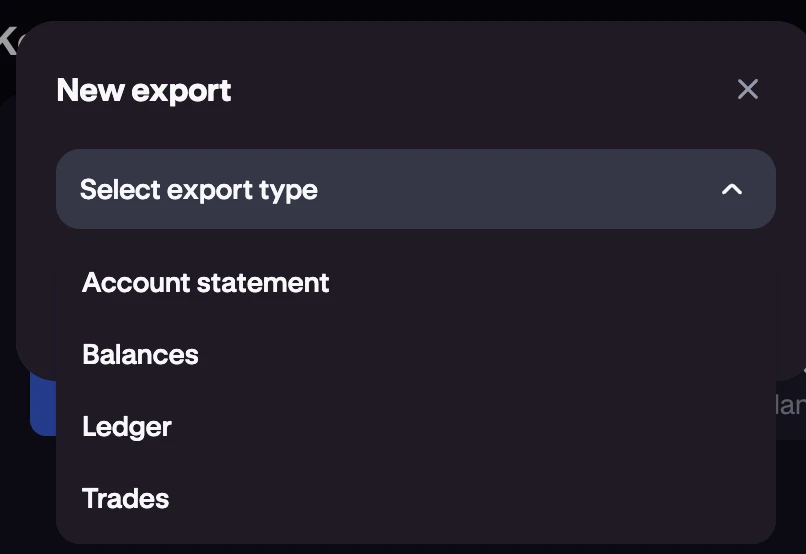
- In Exports, select Create Export and choose Ledger or Ledgers, as labelled in the interface.
- Set a date range covering the purchase and choose CSV. For this check, retain all available fields and avoid narrowing the report to only the asset you bought.
- Generate the export, then return to Documents to download it when ready. Kraken says it does not currently email a ready notification.
Official Kraken interface screenshot from its account history export guide, checked on October 6, 2026. The Ledger and Trades options create different reports.
Use a slightly wider date range if the purchase occurred near midnight, then narrow your inspection inside the downloaded file. Do not silently change the time shown on the original record to make it fit a calendar date.
Look for spend and receive, not just trade
Kraken's ledger field definitions identify spend as an asset debit and receive as an asset credit for purchases made through Buy Crypto or the Kraken app. Ledger times use UTC. Each row concerns one asset, so its amount, fee, and balance use that asset's units.
For the purchase you are investigating:
- Search around the UTC time, retaining any visible reference identifiers.
- Inspect both the payment currency and the purchased asset.
- Check for a negative
spendamount and a positivereceiveamount. Do not filter only fortrade. - If you paid by card, inspect any related
depositentry too. Kraken documents a card-purchase sequence that includes the funding entry, the spend, and the received asset.
Treat these as parts to investigate together, rather than separate purchases to add up. Keep the fee currency attached to the fee amount. Never add amounts from different assets into one quantity total.
If the record still seems absent, isolate the cause
Use this checklist on your working copy. It separates export selection problems from discrepancies that need support.
| What you find | Next check |
|---|---|
| The purchase appears in Ledger but not Trades | Preserve the ledger evidence; the report difference explains the missing Trades row. |
| You find the asset received but cannot see what paid for it | Check whether an asset filter excluded the payment currency. Re-export with broader filters if needed. |
| The transaction appears on an adjacent date | Compare the confirmation's timezone with the ledger's UTC timestamp. |
| The same purchase appears twice in your working file | Check whether you combined overlapping downloads. Compare identifiers before treating either entry as a second purchase. |
| You can find the entries but your totals still differ | Separate asset quantities from fiat valuations, and verify your fee treatment before changing the records. |
| Neither export nor account activity explains the purchase | Stop making adjustments and collect the discrepancy details for official support. |
Do not insert a balancing entry merely because it makes a spreadsheet total look right. Keep an unresolved difference visible until you can explain it. Likewise, two rows close in time are not enough on their own to prove they belong to the same purchase; compare identifiers and your confirmation where available.
Avoid counting the same fee twice
Kraken distinguishes the fee estimate in Trades history from the fee actually deducted in the Ledger. Do not add both reports' fees together as though they were separate charges. Source: Kraken's history comparison.
For a single asset's ledger, Kraken defines the new balance as the previous balance plus the signed amount, minus the fee. Preserve the negative sign on a debit; do not subtract a negative amount a second time. Source: ledger field definitions.
A record that reconciles is not evidence that the purchase offered the best price. If that is your next question, compare instant conversion and spot trading by total cost, separately from this missing-record check.
What to send support if you cannot resolve it
Use the support route you reach from the official site or your signed-in account. Describe one discrepancy clearly: the purchase time and timezone, assets involved, displayed status, export type, selected period, and the specific record you expected to find. Provide transaction references privately through that channel when requested.
Keep unedited source files in your private archive. If you share an excerpt, remove unrelated transactions and personal information; never include passwords, authentication codes, API credentials, or wallet recovery phrases. A public forum does not need your complete financial history.
Before closing the account, verify that your saved files open and cover the activity you need. Our account closure and KYC records checklist explains the separate questions of preserving your records and requesting account closure.
The check is complete when you can point to the relevant entries, explain their asset units and fees, and retain the source export. If any part remains unexplained, record the open question instead of labelling the purchase missing, duplicated, or failed without evidence.